
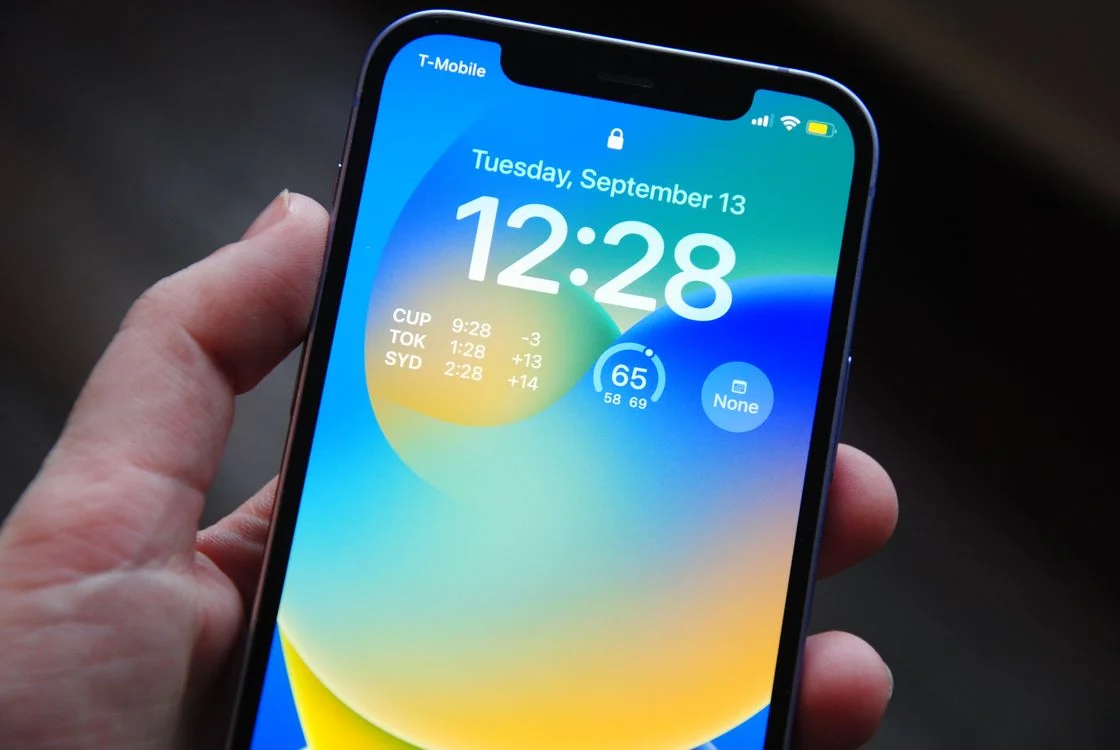
Short answer: Refresh rate is the number of times your screen redraws its image every second, measured in hertz (Hz). A 60Hz display updates 60 times per second; a 120Hz display updates 120 times per second — twice as often. In practice, 120Hz makes scrolling, animations, and games look and feel noticeably smoother, while 60Hz remains perfectly fine for reading, office work, and watching most videos. In this guide, we break down refresh rate 60hz 120hz in plain English — what it is, how it works, and how to use it.
Refresh Rate 60hz 120hz: What Is Refresh Rate, Exactly?
Every screen you own — phone, laptop, TV — is constantly redrawing the picture you see. Refresh rate simply tells you how many times the screen can update what you see in one second, and it is measured in hertz, or Hz (Tom’s Hardware). Think of it like a flipbook: the more pages you flip per second, the smoother the motion looks. A 60Hz screen flips 60 “pages” a second; a 120Hz screen flips 120.
Definition — refresh rate: the number of times per second a display redraws (updates) the image on screen, measured in hertz (Hz). A higher refresh rate allows smoother-looking motion, but only when the content being shown supplies enough frames to fill it.
What Do 60Hz and 120Hz Mean in Actual Numbers?
The math is simple. A 60Hz screen draws a new image every 1/60th of a second — about 16.67 milliseconds. A 120Hz screen draws one every 1/120th of a second — about 8.33 milliseconds (Gadgets360; iTechPost). That shorter gap between refreshes is the whole game: the screen gets twice as many chances per second to show you something new, so movement looks more continuous and the screen feels more responsive to touch.
| 60Hz | 120Hz | |
|---|---|---|
| Screen updates per second | 60 | 120 |
| Time between updates | ~16.67 ms | ~8.33 ms |
| Motion smoothness | Good | Noticeably smoother |
| Battery use | Lower | Higher (unless the display is adaptive) |
| Typical devices | Budget phones, basic TVs and monitors | Flagship and mid-range phones, gaming monitors, newer TVs |
Where Will You Actually Notice the Difference?
The jump from 60Hz to 120Hz is most obvious when something is moving across the screen (iTechPost). Scroll through a long article, swipe through your photo gallery, or drag a window around your desktop, and motion looks more fluid — text stays readable while scrolling instead of smearing. In games, fast action looks cleaner and the controls feel more immediate.
Where you will not notice it: static content. A photo, a document, or a spreadsheet does not get sharper at 120Hz. For still images, resolution, color accuracy, and panel quality matter far more than refresh rate (iTechPost).
Refresh Rate vs. Frame Rate: Don’t Mix These Up
This is the number-one point of confusion, and it is worth getting right. Refresh rate (Hz) describes what your display is capable of showing. Frame rate (fps) describes how many frames your phone, app, or game actually produces each second (HistoryTools). One useful way to remember it: refresh rate is the ceiling, frame rate is the supply (Dev.to).
Why it matters: a 120Hz screen can display up to 120 frames per second, but it cannot invent frames the device isn’t producing (Gadgets360). If a game renders at 60fps, a 120Hz display just redraws the same frame twice — it won’t look any smoother. Likewise, watching a 30fps video on a 120Hz phone gains nothing from the extra refreshes, because the video simply contains no more information to show (Android Police).
Does 120Hz Drain Your Battery Faster?
Yes — refreshing twice as often means the display and graphics chip do more work, and that costs battery. This was the big downside of the first generation of 120Hz phones. The modern fix is adaptive refresh rate: instead of sitting at 120Hz all day, the display changes its refresh rate moment by moment to match what’s on screen.
This is possible thanks to LTPO display panels, which can drop the refresh rate as low as 10Hz when you’re looking at static content — an e-book page, a photo, an idle home screen — and ramp straight back to 120Hz the instant you start scrolling (Android Police). Apple’s version of the same idea is called ProMotion, and similar adaptive systems can dip to 24Hz or 10Hz for reading and static images (TechTimes). The result: the battery penalty of 120Hz shrinks dramatically, because the screen only works hard when there is motion worth showing.
Practical tip: if your phone offers a choice between 60Hz, 120Hz, and Adaptive (sometimes called Auto), pick Adaptive. You get the smoothness where it counts and the battery savings where it doesn’t.
What About TVs and Monitors — Is 120Hz Worth It There?
For passive watching — news, streaming shows, YouTube — a 60Hz TV is usually enough, because most content never exceeds 60 frames per second, and films are typically shot at 24fps (The Daily Perspective). A 120Hz panel cannot add detail that isn’t in the source.
Where 120Hz earns its keep on a TV is gaming and sports. Current PlayStation and Xbox consoles support 4K gaming at up to 120Hz, making a 120Hz TV the sweet spot if you play console games or want a TV that stays relevant for years (The Daily Perspective). Fast-moving sports also stay sharper with less blur.
One marketing trap to know about: some budget TVs advertise “120Hz” or even “240Hz” but actually use 60Hz panels plus motion-smoothing features that invent artificial frames between real ones — the infamous “soap opera effect” that makes movies look like cheap daytime TV (GuideSpot). Check the specs for native 120Hz. Also note that on smaller screens, or when you sit far away, the difference between 60Hz and 120Hz is much harder to see (GuideSpot).
How to Check (and Change) Your Refresh Rate
Bought a high-refresh screen but everything still feels like 60Hz? The operating system often defaults to 60Hz, so check the setting first:
- Windows: Settings → System → Display → Advanced display, then pick from the “Refresh rate” dropdown (Dev.to).
- Mac: System Settings → Displays, then choose a refresh rate (Dev.to).
- Android: Settings → Display → “Motion smoothness” or “Screen refresh rate” — choose 60Hz, 120Hz, or Adaptive.
- iPhone: Pro models with ProMotion displays manage the refresh rate automatically; there is no manual switch to flip.
If the higher option is missing on a monitor, the cable, dock, or port may not support it — the whole chain from PC to panel has to carry the higher rate (Dev.to).
So, Should You Pay Extra for 120Hz?
On a phone: in 2026, 120Hz is standard even on many mid-range phones, so you often don’t pay extra at all — and the smoothness is something you feel dozens of times a day while scrolling and switching apps. If battery life is your top priority and the phone lacks adaptive refresh, dropping to 60Hz mode is a reasonable trade.
On a TV: only if you game on a current console or watch a lot of fast sports; otherwise put the money toward better picture quality (contrast, color, brightness). On a monitor: gamers benefit the most; for office work and web browsing it’s a nice-to-have rather than a need (Windows Central).
Comparing new phones and their displays? See iPhone 18 Pro vs iPhone Duo: Which to Buy in 2026? for how the latest models stack up, and iPhone Duo Explained: Apple’s First Foldable iPhone for where phone screens are heading next.
Frequently Asked Questions
Is 120Hz noticeably better than 60Hz?
For anything in motion — scrolling, animations, games, sports — yes, most people notice smoother, more fluid visuals immediately. For static content like reading articles or viewing photos, there is no visible difference.
Does a 120Hz screen use more battery?
Yes, refreshing twice as often takes more power. But modern adaptive refresh rate displays (LTPO panels, Apple’s ProMotion) lower the rate for static content — down to around 10Hz — which greatly reduces the battery penalty (Android Police).
What is the difference between refresh rate and frame rate?
Refresh rate (Hz) is how many times per second your display can update the image — the ceiling. Frame rate (fps) is how many frames your device or game actually produces per second — the supply. You need both to be high for the smoothest result.
Do I need a 120Hz TV for Netflix and movies?
No. Films are typically 24fps and most streaming content stays at or below 60fps, which a 60Hz TV handles fine. A 120Hz TV is worth it mainly for console gaming at 120fps and fast sports.
Why does my 120Hz monitor still feel like 60Hz?
Check your OS display settings — Windows and macOS often default new monitors to 60Hz. Also make sure your cable and port support the higher rate, and that the game or app is actually outputting high frame rates (Dev.to).

Developers, designers and marketers who build websites, software, apps and automations for businesses worldwide. Our editorial policy
1 comment