The short answer: NotebookLM — Google’s AI research assistant, renamed Gemini Notebook in July 2026 — turns your own documents into study guides, flashcards, quizzes, and podcast-style audio overviews. You upload PDFs, lecture notes, videos, or web pages, and it builds study materials using only those sources, with citations you can check. It’s free to start, and most students never need to pay. In this guide, we break down notebooklm study guides in plain English — what it is, how it works, and how to use it.
Definition: NotebookLM (now officially called Gemini Notebook) is a source-grounded AI assistant from Google. Unlike general chatbots that answer from their training data, it works exclusively with the sources you provide and generates summaries, study guides, audio overviews, and quizzes based solely on that material.
Notebooklm Study Guides: What Is NotebookLM, and Why Did Google Rename It?
NotebookLM started life as Project Tailwind, an experiment Google showed off at Google I/O in May 2023. It later launched publicly as NotebookLM, shed its “experimental” label in October 2024, and grew into one of Google’s most popular AI tools — Google says more than 30 million people use it, as reported by Android Police.
On July 16, 2026, Google renamed it Gemini Notebook to fold it into the Gemini brand, and moved it to notebook.google.com (old links redirect). Same tool, new name — but if you see old tutorials saying “NotebookLM,” they’re talking about the same app (Wikipedia).
How Does NotebookLM Turn Documents Into Study Guides?
The magic is its source-first design. Instead of asking an AI that might invent facts, you give it your materials first, and everything it produces is grounded in them. Here’s the workflow:
1. Upload your sources
Create a notebook and add your materials — lecture slides, textbook chapters, your own typed notes, even YouTube videos. The free plan allows up to 50 sources per notebook, with each source holding up to 500,000 words, so a whole semester’s readings fit easily (Sourclip).
2. Chat and ask questions
Ask anything about your materials in plain language — “Summarize the key arguments,” “Explain this like I’m five,” or “Compare these two theories using only my readings.” Answers come with clickable citations back to the exact passage, so you can verify everything.
3. Generate study materials in the Studio panel
This is where documents become study guides. With one click, the Studio panel produces study guides, FAQs, timelines, briefing documents, mind maps, flashcards, quizzes, slide decks, infographics, and data tables — all drawn from your sources (eWeek). You can also let it search the web for fresh material with Deep Research.
What Files Can You Upload to NotebookLM?
NotebookLM accepts a wide mix of formats: PDFs, Google Docs, Word files, text files, CSVs, websites, YouTube links, Google Drive files, copied text — plus audio (MP3, WAV), video (MP4, AVI), and images (PNG, JPG, WEBP) with OCR for scanned pages (DigitalOcean). Don’t have sources handy? The Discover Sources feature finds relevant web sources for your topic automatically.

Students get an extra on-ramp: Google has integrated NotebookLM into Google Classroom, where a Gemini tab lets students build a personal class notebook grounded strictly in their educator’s materials (Chrome Unboxed).
What Study Tools Can It Create?
Audio Overviews: your documents as a podcast
The most famous feature turns your sources into a podcast-style conversation between two AI hosts discussing your material. You can customize it (“go deep on chapter 3,” “explain it simply”), and an interactive mode lets you interrupt the hosts mid-discussion to ask questions. If you’re curious how AI voices like these are made, see our explainer on ElevenLabs Explained: How AI Voice Generation Works.

Flashcards, quizzes, and mind maps
Generate flashcards and quizzes (multiple choice, short answer, fill in the blank) directly from your sources, with an “explain” option that cites back to the material. Mind maps visualize how concepts connect across all your documents — handy before an exam.
Reports, timelines, and slide decks
Need a briefing doc, a chronological timeline, or a presentation? The Studio panel builds those too, and you can export to PDF, slides, or spreadsheets. For polishing visuals further, Canva Magic Studio: Design Without a Designer covers design without a designer.
Recent additions keep it fresh: short 60-second video overviews in 80+ languages, a mobile audio recorder that transcribes your lectures into citable notes, and interactive learning overviews rolled out for back-to-school 2026 (Neowin).
How Is NotebookLM Different From ChatGPT?
| NotebookLM (Gemini Notebook) | General AI chatbots | |
|---|---|---|
| Answers come from | Only your uploaded sources | Training data + web |
| Made-up facts | Rare — responses are source-grounded | Possible — always verify |
| Citations | Built in, linked to your sources | Varies by tool |
| Study outputs | Guides, quizzes, flashcards, audio, mind maps | Text answers you format yourself |
| Best for | Learning your materials accurately | Brainstorming and open-ended questions |
Think of it this way: a chatbot is a know-it-all friend; NotebookLM is a tutor who has actually read your syllabus.
Is NotebookLM Free?
Yes — the core product is free with a Google account: up to 100 notebooks, 50 sources per notebook, plus daily allowances for chats and audio overviews. Paid tiers are bundled into Google’s Google AI plans (Plus, Pro, Ultra) and raise those limits — for example, more sources per notebook and higher daily usage. Google has adjusted prices and limits before, so treat any figure as a snapshot and check the current plans page before paying (Sourclip).
One privacy note: your files are processed on Google’s servers, not your device. For personal accounts, Google says uploads aren’t used to train its models unless you submit feedback — but it’s still not the place for highly confidential material (Elephas).
How to Turn Your Documents Into a Study Guide in 5 Steps
- Create a notebook. Go to notebook.google.com and sign in with your Google account.
- Add 3–5 focused sources. Upload your most important readings first — quality beats quantity.
- Ask for a summary. Check the citations to make sure it captured the key points.
- Generate a study guide. In the Studio panel, create a study guide, then add flashcards and a quiz on your weakest topics.
- Make an Audio Overview. Listen on your commute to reinforce what you read.
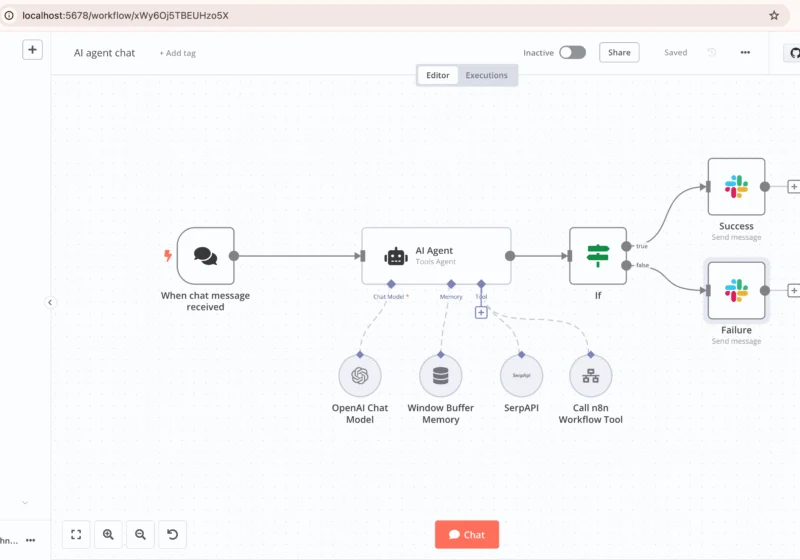
Power tip: if you take digital notes, you can automate feeding them into notebooks — see What Is n8n? Open-Source Automation Explained for how automation tools like n8n connect your apps.
Frequently Asked Questions
Is NotebookLM actually free?
Yes. The free tier includes up to 100 notebooks with 50 sources each, plus daily chat and audio overview allowances — enough for most students. Paid Google AI plans (Plus, Pro, Ultra) raise the limits for heavy users.
Is NotebookLM now called Gemini Notebook?
Yes. Google renamed NotebookLM to Gemini Notebook on July 16, 2026, and moved it to notebook.google.com. It’s the same tool; old links redirect automatically.
What files can I upload to NotebookLM?
PDFs, Google Docs, Word and text files, CSVs, websites, YouTube links, audio, video, images, and copied text. The free plan supports 50 sources per notebook, each up to 500,000 words.
Does NotebookLM make things up?
Far less than general chatbots: it’s source-grounded, meaning it answers only from your uploads and shows citations. Still, AI can misread material, so check citations before exams or submissions.
Can students use it with Google Classroom?
Yes. A Gemini tab inside Google Classroom lets students build notebooks grounded in their teacher’s materials and generate study guides from them.
Is my data used to train Google’s AI?
For personal accounts, Google says your uploads aren’t used for training unless you submit feedback. Files are processed on Google’s servers, so avoid uploading sensitive documents.
The bottom line: if you’re drowning in readings, NotebookLM is the fastest honest way to turn that pile into study guides, quizzes, and listen-anywhere audio — all tied to sources you can verify. Upload your first three documents today and let the tutor do the heavy lifting.
Developers, designers and marketers who build websites, software, apps and automations for businesses worldwide. Our editorial policy