A password manager is a small app that creates, stores, and fills in a long, random, unique password for every one of your accounts — so you only have to remember one strong master password. Your passwords sit in an encrypted vault the provider can’t read, which kills password reuse, the single biggest reason everyday accounts get hacked. CISA recommends them for everyone. In this guide, we break down password managers in plain English — what it is, how it works, and how to use it.
What is a password manager, exactly?
Definition: A password manager is software that generates, encrypts, stores, and automatically fills in login credentials for websites and apps. The entire vault of passwords is protected by one master password (or passphrase), and under a “zero-knowledge” design the service provider never sees or stores that master password — so it cannot read your data, even if its own servers are breached. (CISA, University of Alberta IST)
Think of it as a digital keyring: instead of cutting the same house key for your home, your car, and your office (which is what password reuse amounts to), you get a unique key for every door, and you only need to remember where you keep the keyring.
Why do you actually need one?
Most people need one because human memory and good security are fundamentally at odds. Security experts keep pointing at the same pattern:
- You reuse passwords. When one website gets breached and your login leaks, attackers automatically try it on banking, email, and shopping sites — a tactic called credential stuffing.
- You can’t remember dozens of strong passwords. The honest alternatives are writing them down, reusing them, or making them easy to guess. CISA says plainly that generating and remembering long, random, unique passwords for every account “is not possible” for most people.
- “Clever” passwords aren’t clever. NIST’s current guidelines (SP 800-63B, Revision 4, finalized August 2025) explicitly prohibit forced complexity rules — mandatory uppercase, numbers, symbols — because humans just produce predictable patterns like “Password1!”. Length is what matters; computers can do true randomness, humans can’t.
A password manager solves all three at once: the generator makes the strong password, the vault remembers it, and autofill types it for you.
How does a password manager work?
Five components do the heavy lifting (TechRadar):
1. Encrypted storage
Your passwords are encrypted — typically with AES-256, the same grade of encryption used to protect government secrets — before they are ever stored or synced. Without the decryption key, the data is unreadable gibberish.
2. One master password
Your master password (or a longer passphrase) derives the encryption key. The provider never sees or stores it, so a breach of the company’s servers only yields encrypted blobs — exactly what happened in the widely reported 2022–2023 LastPass breach, where stolen encrypted vault copies could not be opened by the thieves without users’ master passwords.
3. Password generation
The built-in generator creates long, random passwords like k9#mQ2$xR7&wL5 whenever you sign up for something new — no more inventing “Summer2026!” yourself.
4. Autofill
The manager recognizes the website you’re visiting and fills in the right credentials. This has a bonus security effect: if you land on a fake lookalike domain, the manager won’t recognize it and won’t fill anything, which is a useful early warning sign of phishing. It’s not a perfect defense, but it helps.
5. Sync and security audits
Your vault syncs across your phone, laptop, and browser, and most managers run an audit that flags weak, reused, or breached passwords so you can replace them. Built-in browser managers (Chrome, Safari, Edge) and free tiers of dedicated apps are a perfectly good starting point for beginners.
Is a password manager safe? The “all eggs in one basket” question

It’s the most common worry, and it’s worth answering head-on. Putting all your passwords in one place feels risky — but consider what it’s being compared against: the same three passwords reused across forty sites. A single breach then compromises all forty, as CISA’s cautionary account-takeover example illustrates.
The security model is called zero knowledge: encryption happens on your device, and the company holds only encrypted data it cannot read. That means an attack on the provider’s servers doesn’t expose your logins — the attackers would still need your master password. (DEV Community, University of Alberta IST)
Two things are on you, though: pick a long, unique master passphrase you don’t use anywhere else, and turn on multi-factor authentication for the vault itself. CISA’s mobile security guidance explicitly advises protecting the vault password with a strong passphrase.
Password managers vs. passkeys: what about the future?
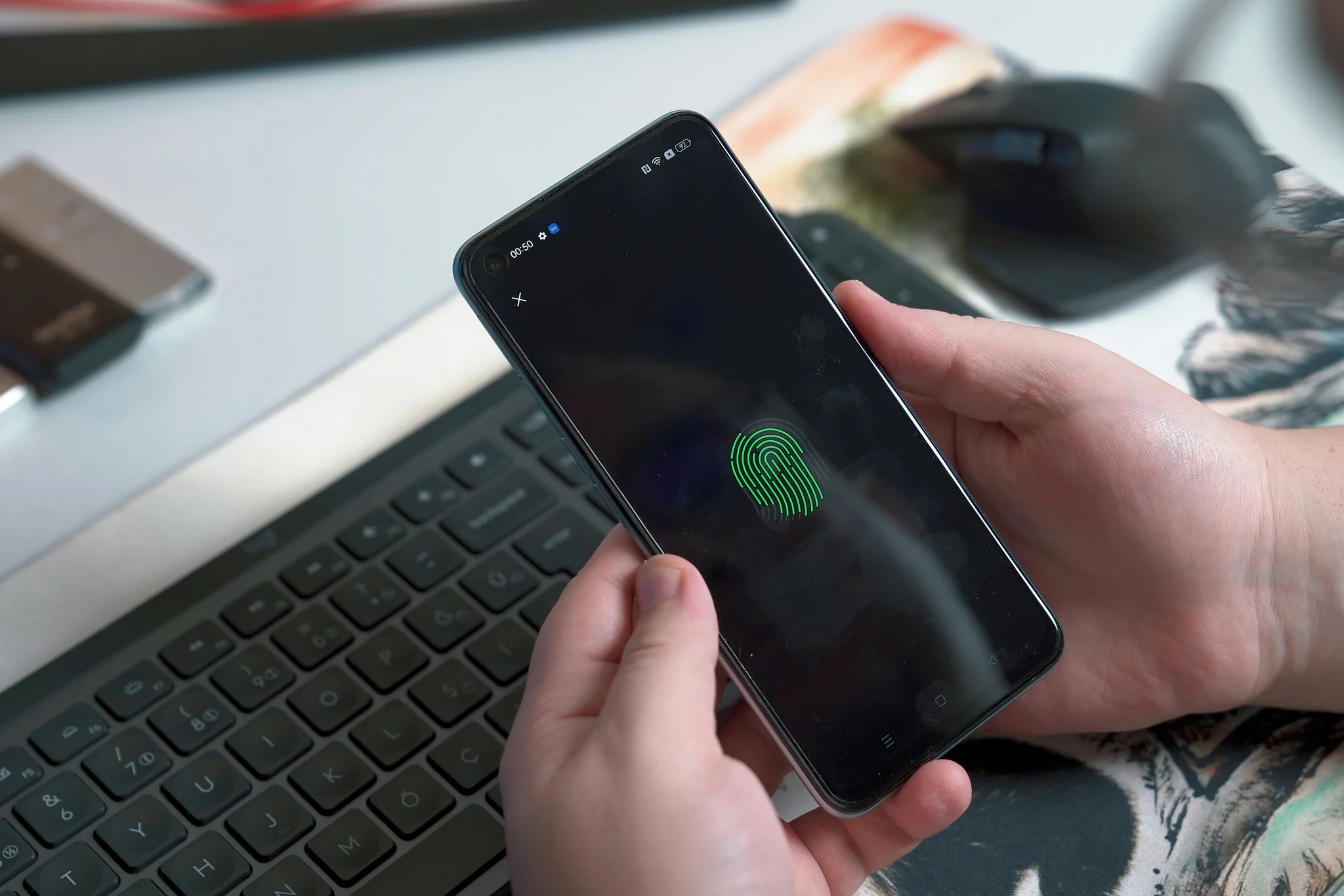
The industry is gradually moving toward passkeys — phishing-resistant login credentials based on public-key cryptography, developed by the FIDO Alliance with Apple, Google, and Microsoft. Your device holds a private key, the site holds a public key, and you unlock sign-in with your fingerprint or face. There is no password to steal, guess, or phish.
| Password manager | Passkeys | |
|---|---|---|
| How you sign in | Autofilled password + (ideally) MFA | Fingerprint / face / device PIN |
| Phishing resistance | Partial (autofill mismatch is a hint) | Built in — keys are bound to the real site |
| Works everywhere today | Yes, on essentially every site | Only where sites have added support |
| What to remember | One master password | Nothing |
| Role for the next few years | Essential for the vast majority of sites | Use where offered; managers store them too |
Adoption is genuinely accelerating — the FIDO Alliance’s State of Passkeys 2026 report found three-quarters of surveyed consumers had enabled a passkey somewhere, and passkey sign-ins succeeded 93% of the time in participating companies’ data (BitsKingdom). But for the long tail of websites that may never support passkeys, a password manager is your permanent solution. Most managers can also store passkeys, so the two work together — see also our guide on related privacy basics like What Is a VPN? (And Do You Really Need One?).
How to get started in 15 minutes
- Pick one. Start with what’s already on your devices — your browser’s built-in manager or Apple/Google’s — or try a free dedicated app. A reputable choice with a large user base and positive reviews is what CISA suggests looking for.
- Create a strong master passphrase. Four or five random words (e.g.,
correct horse battery staple-style) are long, memorable, and strong. Write it down on paper and keep it somewhere safe until it’s in your head. - Turn on multi-factor authentication for the manager itself — email and banking too.
- Import and audit. Import your browser’s saved passwords, then run the manager’s security audit and replace weak or reused passwords, starting with email, banking, and social accounts.
- Let the generator take over. From now on, every new account gets a generated password. You never have to see or remember any of them.
Many managers also generate two-factor codes and store notes securely — worth exploring once the basics are set up (see also 10 AI Productivity Tools Worth Trying in 2026). And if you keep notes or backups synced elsewhere, read Drive vs Dropbox vs OneDrive: Best Cloud Storage 2026? before choosing where your recovery codes live.
Frequently asked questions
Is a free password manager good enough?
For most beginners, yes. The built-in managers in Chrome, Edge, Safari, and Android/iOS handle generation, storage, sync, and autofill well. Paid managers typically add extras like unlimited device sync, family sharing, breach alerts, and travel mode — nice to have, not required to be safe.
What happens if I forget my master password?
This is the real risk: because the provider can’t see your data (zero knowledge), it can’t recover your master password for you either. That’s why your setup should include account recovery options like an emergency contact, a printed recovery kit stored safely, or biometric unlock as a backup.
Can a password manager be hacked?
The provider’s servers can be breached — it has happened — but your passwords are encrypted on your device before ever leaving it, so stolen vaults are useless without each user’s master password. The practical lesson: use a long, unique master passphrase and enable MFA on the vault.
Are browser password managers safe?
They’re a solid, free starting point — CISA itself names browser managers as an option. A dedicated app adds cross-browser sync and stronger audit features, but the biggest security upgrade is going from reuse to unique passwords, which any manager delivers.
Do I still need a password manager if I use passkeys?
Yes, for now. Passkeys only exist on sites that have adopted them; everything else still needs a password. Good news: most password managers can store passkeys too, so one app covers both worlds.
Does a password manager protect me from phishing?
Partly. Autofill only offers credentials for the site they belong to, so a fake domain won’t get your password — a useful red flag. But it can’t stop you from manually typing credentials on a convincing fake page. Pair a manager with the habit of checking URLs before you log in.

Developers, designers and marketers who build websites, software, apps and automations for businesses worldwide. Our editorial policy