
The short answer: In 2026, the easiest path into Linux is a beginner-friendly distribution: Linux Mint 22.3 if you are coming from Windows, Ubuntu 26.04 LTS for the biggest community and longest support, or Pop!_OS 24.04 LTS if you want the newest look — System76’s COSMIC desktop, which reached version 1.10 on October 8, 2026 with refinements like drawing-tablet mapping and a faster, GPU-rendered app launcher. Download a free ISO, test it from a USB stick without installing anything, and commit only once Wi-Fi, sound, and your display all work. In this guide, we break down linux beginners cosmic desktop in plain English — what it is, how it works, and how to use it.
Linux Beginners Cosmic Desktop: What exactly is a Linux desktop environment?
Definition: A desktop environment is the complete graphical interface of a Linux system — the taskbar or dock, menus, windows, settings app, and file manager you see and click. Linux separates the underlying operating system from its interface, so the same system can look and behave very differently depending on which environment it runs. Popular examples include GNOME, KDE Plasma, and Cinnamon — and the newest major entry is System76’s COSMIC.
What is COSMIC, and why is it in the news?
COSMIC is a free and open-source desktop environment and Wayland compositor for Linux, built from scratch by computer maker System76 in the Rust programming language using the Iced toolkit (Wikipedia). It began as a customized GNOME shell for Pop!_OS, but System76 later rebuilt it as a fully standalone environment. Its signature trick is flexible window management: windows can tile themselves in an automatic grid, float freely, stack like browser tabs — and any window can act as a tab. The name is officially an acronym for “Computer Operating System Main Interface Components.”
COSMIC went stable with Pop!_OS 24.04 LTS, released December 11, 2025 — the first stable deployment of the new desktop — and development has moved quickly since. Version 1.10 is a polish release with beginner-friendly touches: you can map a drawing tablet to a specific display, the app store gained a screenshot gallery so you can preview apps properly, the terminal got keyboard shortcuts for moving tabs left and right, the app launcher now uses GPU-accelerated rendering for snappier searches, and first-run setup only asks about Wi-Fi if your machine actually has wireless hardware (9to5Linux, Linuxiac). Under the hood it also added support for custom SSH agents — if you are curious what SSH agents do, see our explainer What Is SSH? OpenSSH 10.6 & Post-Quantum Security.
Is COSMIC a good choice for a Linux beginner?
It can be — with one honest caveat. COSMIC looks modern, its settings are easy to discover, and Pop!_OS ships solid Nvidia and AMD graphics-driver support out of the box, which removes one of the classic beginner headaches (RedSwitches). If you do creative work, 1.10’s drawing-tablet mapping is a genuine plus. The caveat: because COSMIC is newer, there are simply fewer tutorials, forum threads, and video fixes than for long-established options like Ubuntu. Beginners who enjoy exploring will be fine; beginners who want an answer to every question on the first page of search results may be happier starting with Mint or Ubuntu and revisiting COSMIC later.
Which Linux distribution should a beginner install in 2026?
Here is how the most-recommended 2026 options compare (BetaNews, Tecmint):
| Distribution | Best for | Desktop | Why beginners like it |
|---|---|---|---|
| Linux Mint 22.3 | Windows switchers | Cinnamon | Familiar layout, one-click codec setup during install, based on Ubuntu LTS |
| Ubuntu 26.04 LTS | General users | GNOME | 5-year support, huge community, Wayland by default |
| Zorin OS 18.1 | Flexible desktop layouts | GNOME-based | Polished looks that can mimic Windows or macOS |
| Pop!_OS 24.04 LTS | Developers, COSMIC fans | COSMIC | Modern Rust-built desktop, good Nvidia/AMD driver support |
| Fedora 44 | Enthusiasts, new hardware | GNOME | Latest software; shorter support cycle (~13 months) |
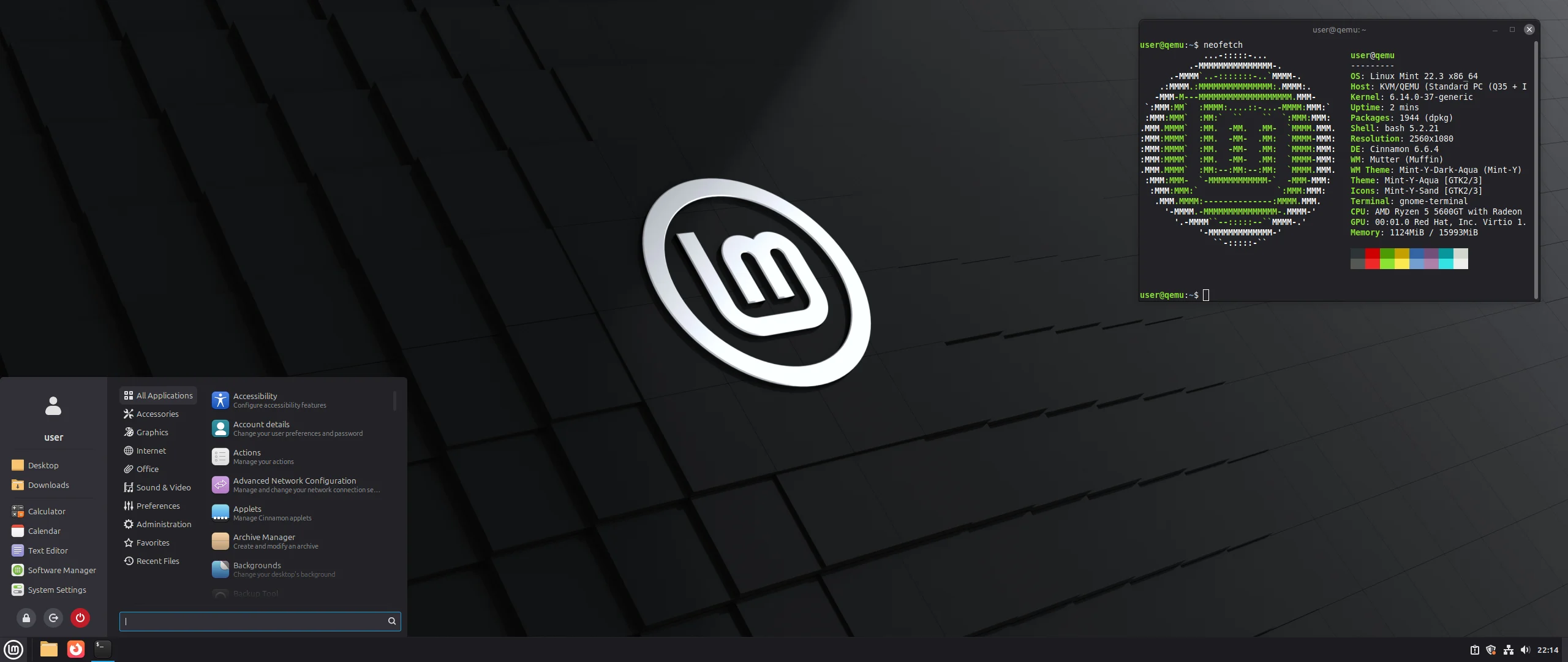
If you are still unsure, the classic advice holds: start with Linux Mint. It runs on modest hardware (2 GB of RAM minimum, 4 GB recommended, 20 GB of disk space), its Cinnamon desktop feels immediately familiar to Windows users, and it stays out of your way after installation.
How can I try Linux without installing it?
- Download an ISO from the distribution’s official website.
- Write it to a USB stick with a free tool like balenaEtcher or Rufus — both handle the process without extra configuration (BetaNews).
- Boot from the USB (you may need to pick the USB drive from your computer’s boot menu).
- Choose the “try” or live mode and check that Wi-Fi, sound, the trackpad, and your display all work.
- Install only when you are happy — the guided installers on Ubuntu, Mint, and Zorin take most people under twenty minutes.

Back up your important files first anyway: the live session does not touch your hard drive, but the installer will later ask about partitioning — and that is the moment mistakes happen.
What should I do in my first week with Linux?
- Run the updates. Use the graphical Update Manager or the app store; on COSMIC, the Store also handles system components.
- Install apps from the store, not random websites. COSMIC Store pulls apps from Flathub; Mint and Ubuntu have their own software centers. It is the Linux equivalent of an app store — safer than downloading installers.
- Learn the launcher. In COSMIC, the Super (Windows) key opens a launcher that finds apps and files, does quick math, and runs terminal commands — many users barely touch the mouse afterward.
- Peek at the terminal — don’t fear it. You don’t need it for daily use, but knowing
ls,cd, andsudo apt updateunlocks most tutorials. Developers should learn What Is Git? Version Control Explained Simply early — it is the natural next skill after the basics. - Set up backups. Tools like Timeshift snapshot your system, so a bad experiment becomes a ten-minute rollback instead of a reinstall.
- Try window tiling. In COSMIC, auto-tiling arranges new windows in a grid by themselves — drag windows to edges or use Super plus arrow keys. It is the feature most newcomers end up loving.
And if you enjoy the feeling of a free OS on your own terms, older Android phones have a similar path — our explainer on LineageOS 24: What Is a Custom Android ROM? covers custom ROMs.
Frequently asked questions
Is Linux really free?
Yes. Distributions like Mint, Ubuntu, and Pop!_OS cost nothing to download and use; companies charge only for optional professional support.
Can I run my Windows programs on Linux?
Some Windows apps run through compatibility tools like Wine or Valve’s Proton (popular for games). Most switchers instead adopt native alternatives — LibreOffice for documents, GIMP for image editing, Firefox or Chrome for the web. List your must-have apps and check their Linux story before switching.
Will COSMIC run on my computer?
Probably, if your machine is from the last decade: Pop!_OS ships with Nvidia and AMD driver support, and COSMIC is Wayland-native. For very old or underpowered machines, a lighter option — Mint’s Xfce edition or MX Linux — is a safer first try.
Do I have to use the terminal?
No. Modern desktops handle Wi-Fi, updates, and app installs graphically. The terminal just makes online troubleshooting guides easier to follow, since helpers can give you exact commands to paste.
COSMIC or Cinnamon — which is better for beginners?
Cinnamon (Linux Mint) feels like Windows and has the biggest help community; COSMIC (Pop!_OS) is more modern and keyboard-driven but newer, so fewer tutorials exist. Choose familiarity or adventure — both are free, so you can try each from a USB stick.
Can I keep Windows alongside Linux?
Yes — dual-booting is standard, and installers offer an “install alongside” option. Back up your data first, and install Windows before Linux if you are setting up both from scratch.
Linux in 2026 is no longer the experts-only club it once was. Whether you pick the familiar comfort of Mint, the giant community of Ubuntu, or the fresh, Rust-built COSMIC desktop on Pop!_OS, you can try it all from a USB stick for free before changing a thing. Pick one, give it a week, and let the desktop surprise you.
Developers, designers and marketers who build websites, software, apps and automations for businesses worldwide. Our editorial policy
1 comment